
Integrate your PetPooja POS with AirMenus
We are happy to announce our integration with PetPooja, one of the most popular restaurant POS companies in India.
The integration will significantly help brand partners reduce the manual effort & time spent on punching orders from the AirMenus dashboard to their POS system, as well as manage their menu directly from their POS.
Get Started
1. Get your Menu Sharing Code
Write to your PetPooja PoC on email with your PetPooja restaurant ID. Remember to mark support@airmenus.in in the same email.
2. Adding AirMenus to your "Areas" in PP
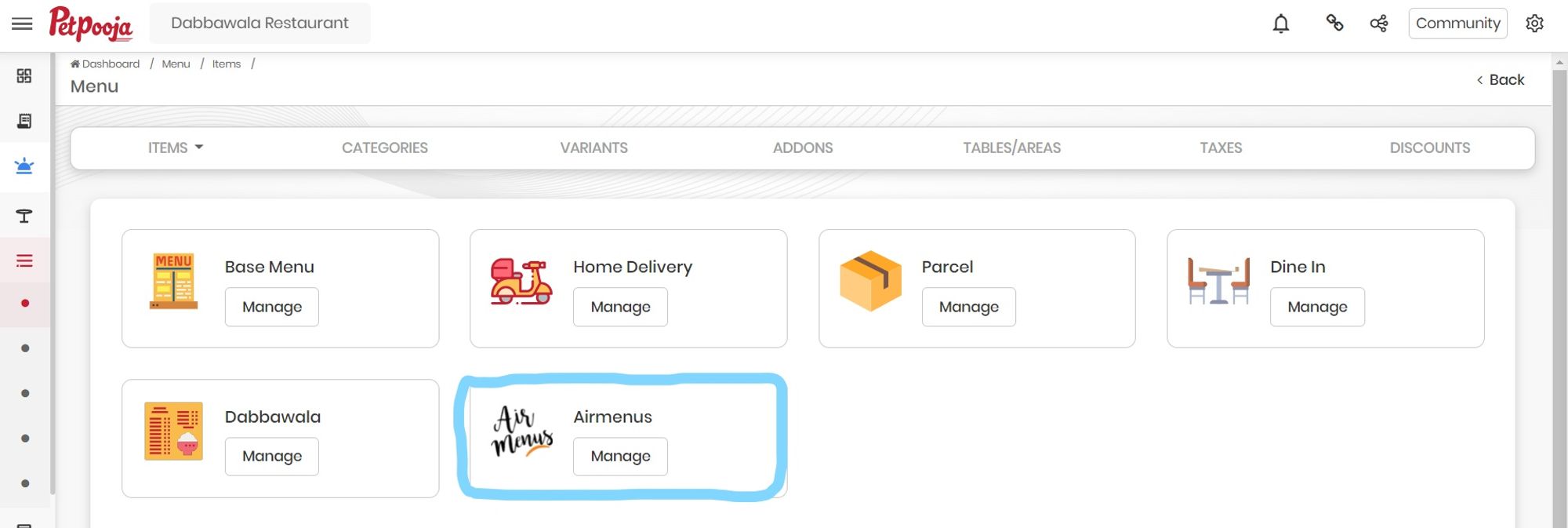
Once your menu sharing code has been configured, verify that AirMenus appears in the "Areas" tab under Menu Management.
To access your "Areas":
- Click on Menu Management
- Click on Tables/Areas
- Click on Areas
3. Creating Parent Categories
Parent Categories refer to Sections in AirMenus. Refer to the images below to see how this works.
In the image below, 3 parent categories are present, i.e. Food, Bar & Beverages.
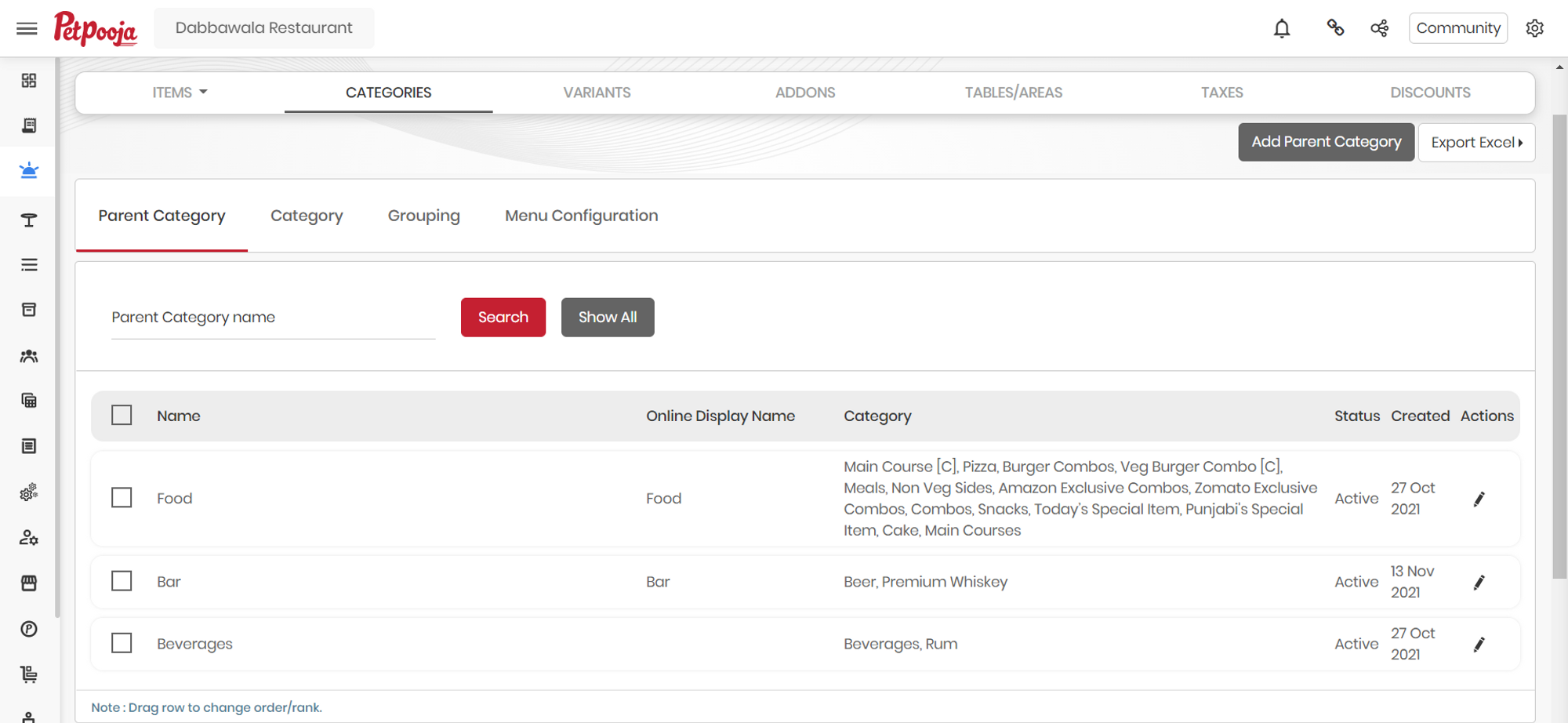
Every parent category has categories assigned to them, e.g. Bar has "Beer and Premium Whiskey" categories.
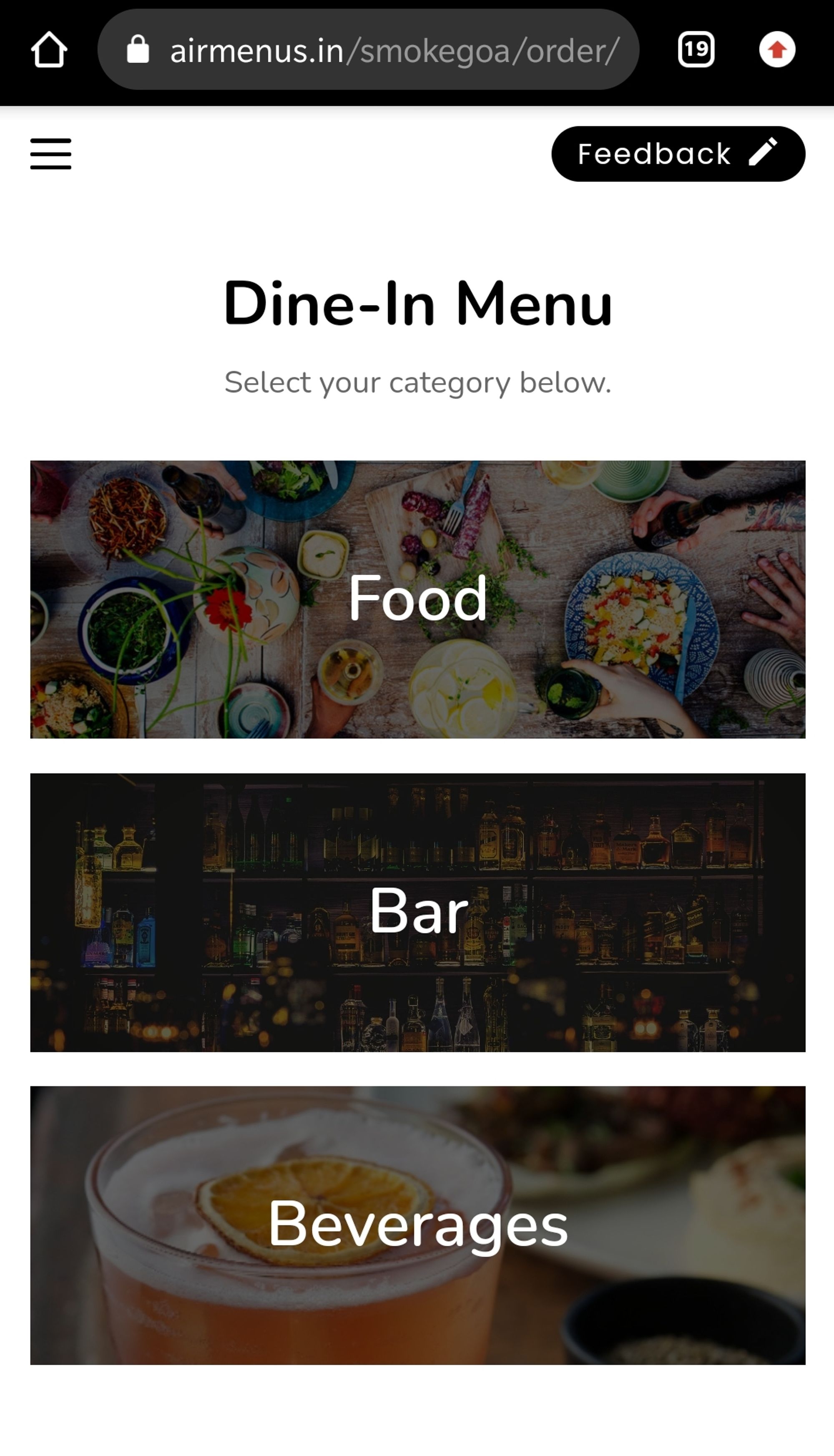
These parent categories in the AirMenus dashboard are called Sections.
Sections basically help in dividing the menu to avoid endless scrolling and provide a more convenient experience to the guests, allowing them to jump across various parts of the menu easily.
If a parent category in PP does not have any categories mapped under it, it will not show up on the AirMenus customer link, as it will be empty.
The image below is an example of how sections show up on the guest's phone.
4. Menu Trigger
Once the categories have been mapped to the respective parent categories, make sure your menu is in the right order before pushing it to AirMenus.
To sync the menu from PP, click on the Menu Trigger button as shown in the image below.
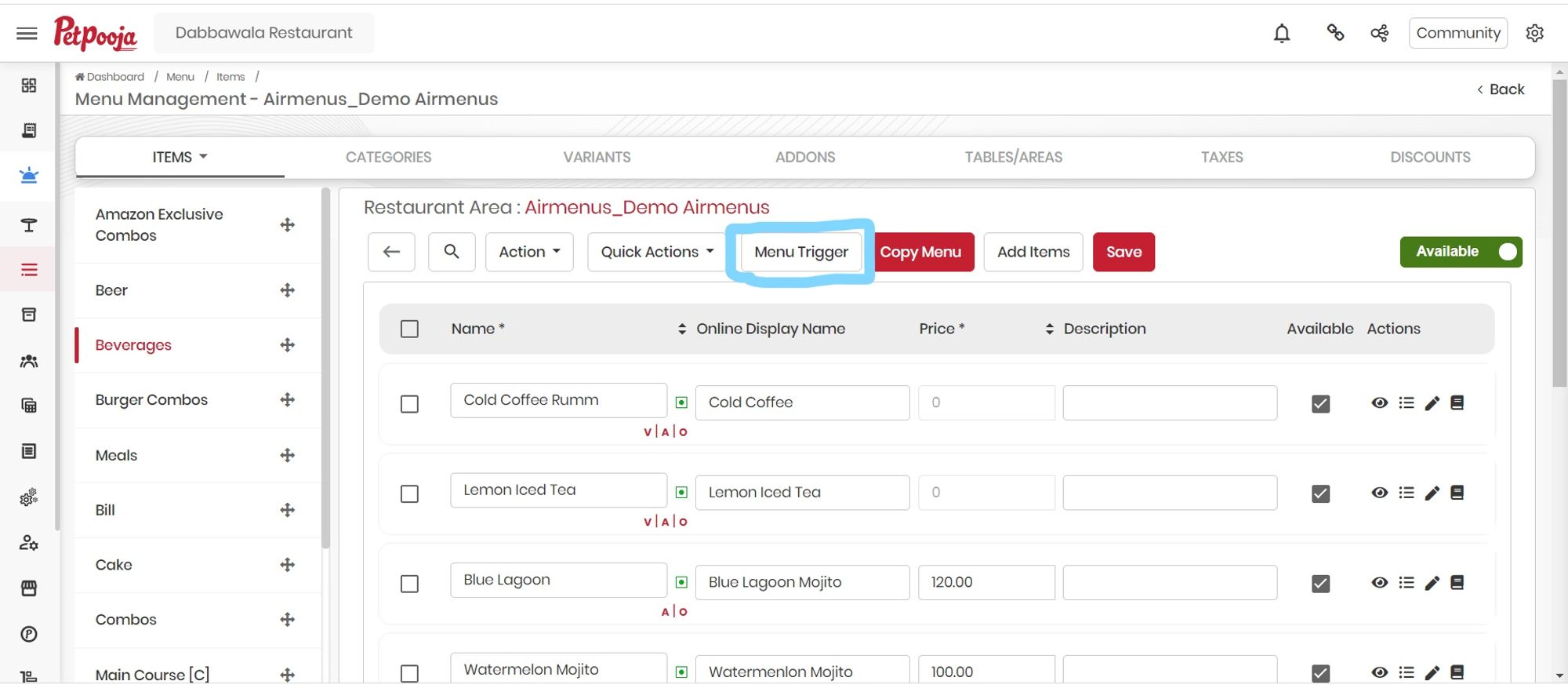
Once the menu is triggered successfully, please check your AirMenus link and verify!
Points to note
- The initial setup of the following details will need to be done from your AirMenus dashboard:
- Section background images, category banners & item images, will need to be added from the AirMenus Partner Dashboard.
- Ordering of Item, Category and Sections on the digital menu link.
- Item special and health tags.
- Item pre-order slots and active timings.
- Please mark the items under the correct order type(s), i.e. Table order for Dine-ins, Delivery & pick-up. This has to be done for each and every item individually as there is no shortcut at present in PetPooja.
If you are a registered AirMenus Partner and need help with your PetPooja Integration, connect with AirMenus Support team.